Vendors Guide on Vendor Registration Form
This is a step to step guide on how to submit vendor registration forms and troubleshooting.
Submitting a Vendor Registration Form
Step 1 : Click / Copy and Paste the URL
Step 2 : Enter Email Address of Submitter
Step 3 : Submitting Email Address
Step 4 : Retrieve Access Link and Code From In Email Inbox
Step 5 : Accessing the Registration Form
Step 6 : Filling Up Registration Form
Step 7 : Submitting Registration Form
Step 8 : Accessing Submitted Form
Revise Vendor Registration Submission
Step 1 : Receiving On Hold Email in Your Email Inbox
Step 2 : Revising your vendor registration form
Step 3 : Filling Up Registration Form and Submit
Submitting a Vendor Registration Form
This section will cover the process from receiving a General Vendor Registration Link (as follows) from your customer until submitting your registration.
https://adam.supplycart.my/vendor-registration/fill/xxxxxx
If you have any questions during the vendor registration process, please contact your customer for assistance.
Step 1 : Click / Copy and Paste the URL
Click or copy and paste the above vendor registration URL in your web browser address bar, then press Enter.
Step 2 : Enter Email Address of Submitter
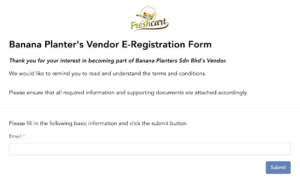
You will be navigated to the page where you are required to input your email address.
If the registration is to be completed by another person-in-charge (PIC) in your organization, please share the Vendor Registration Link to the PIC instead.
Step 3 : Submitting Email Address
Click “Submit” to submit the email address.
You will be receiving Access Link and Code in the inputted email address inbox to continue the registration process.
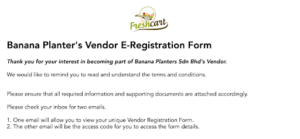
You may close the browser tab when you receive the above message.
Step 4 : Retrieve Access Link and Code From In Email Inbox
Go to your email inbox in which you will receive 2 emails :
1. One email containing a unique access Link.
2. The other email contains an access code that is required for accessing the registration form.
Note : Accessing your registration is now via the unique access link and not the General Vendor Registration Link . Resubmitting under General Vendor Registration Link will result in duplicate registration.
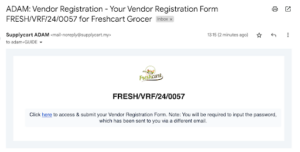
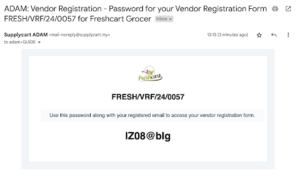
In case you did not receive the above emails, please follow these troubleshooting steps :
1. Check your Spam/Junk Folder:
Look for the email by searching for its title. If found, configure your email settings to mark all future emails from mail-noreply@supplycart.my as “Not Spam” or “Not Junk” to ensure smooth delivery going forward.
2. If the Email is Not in the Spam/Junk Folder:
Please contact your IT team and request to whitelist the sender mail-noreply@supplycart.my. After whitelisting, reach out to your customer and request that they resend the unique access link to you.
If you received the unique access link but not the code, please click “here” and then “Request New Code” to have the access code resent to you.
Step 5 : Accessing the Registration Form
a. Copy the code from the access code email.
b. Click “here” in the unique access link email and paste the code.
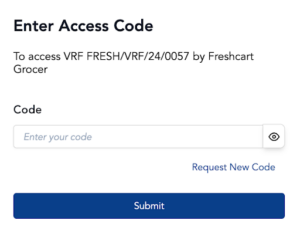
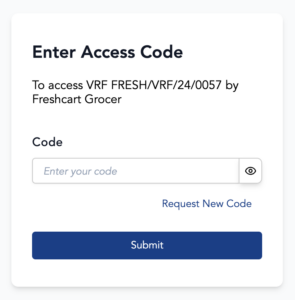
Note : In case you did not receive or lost the access code, click “Request New Code” and then “Yes” for NEW access code to be sent to you. Please be aware that by doing so, any previous access code will become invalid.
You may refer to Step 4 for instructions on retrieving the code.
Step 6 : Filling Up Registration Form
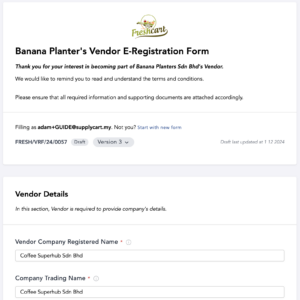
Upon successfully entering the valid access code, you will be directed to the registration form. Please complete and submit the vendor registration form.
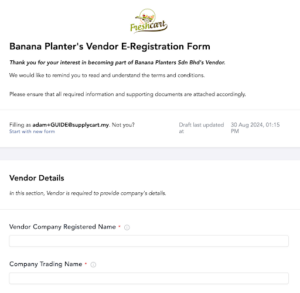
The vendor registration form is automatically saved as a draft. In case you accidentally exited the page, you can always continue filling up the registration form by clicking the unique access link in the email you previously received. (Similar email / link in Step 4)
If you have any questions or need further clarification regarding the registration, please contact your customer for assistance.
Step 7 : Submitting Registration Form
Once completed, click “Submit” to submit your vendor registration form. Once submitted, you will see that the status updated to “Pending Review Pre-Approval,” indicating that your submission is now under review by your customer.
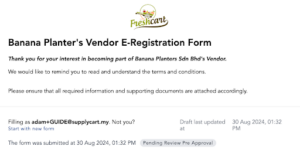
Step 8 : Accessing Submitted Form
Upon submission, you will receive an email along with the same unique access link to access the registration you have submitted.
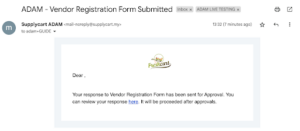
If you wish to make any changes to the submitted response, please contact your customer and request to have your submission placed on hold thus returned to you for revision. For revision of registration, please refer to the “Revise Vendor Registration Submission” section below.
Revise Vendor Registration Submission
This section outlines the process and steps to take if you receive an “On Hold” email from your customer, requesting revisions to your registration.
Step 1 : Receiving On Hold Email in Your Email Inbox
If your customer requires you to revise the vendor registration, you will receive the following email in your inbox. This email will include remarks from the customer, which can be found after the phrase “due to.”
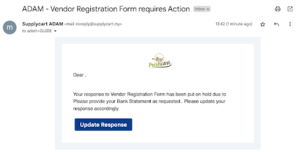
In case you did not receive the above emails, please follow these troubleshooting steps :
1. Check your Spam/Junk Folder:
Look for the email by searching for its title. If found, configure your email settings to mark all future emails from mail-noreply@supplycart.my as “Not Spam” or “Not Junk” to ensure smooth delivery going forward.
2. If the Email is Not in the Spam/Junk Folder:
Please contact your IT team and request to whitelist the sender mail-noreply@supplycart.my. After whitelisting, reach out to your customer and request that they resend the unique access link to you.
Step 2 : Revising your vendor registration form
a. Click “Update Response” in the “Vendor Registration Form Requires Action” email to access back to your submitted form, which will now show a status of “On Hold.”
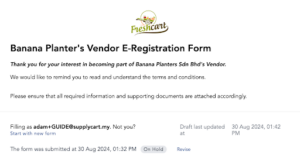
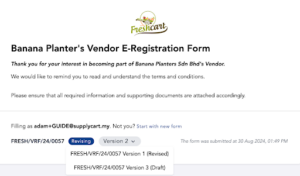
b. Next, click the “Revise” button in the vendor registration form, which the status of your vendor registration now shows as “Revising”.
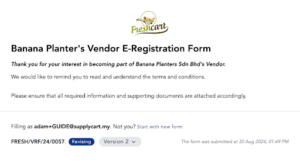
c. Click “Version X” , under the dropdown and select the latest version ending with (Draft). You will be redirect to a page and asked to enter an Access Code which is retrievable from your email inbox. Repeat from Step 4 until you have resubmitted your registration.
Note : Every submission will generate a version on the system. To view your previous submission, click the previous version.
Step 3 : Filling Up Registration Form and Re-Submit
Upon successfully entering the valid access code, you will be directed to the registration form. Please complete and resubmit the vendor registration form repeating from Step 6 to Step 8